General notes
Via Aware displays real-time information about situations on the Pojate–Čačak highway (Morava Corridor). The data shown is a direct result of messages sent — using V2X technology — by operators from the Roads of Serbia Regional Operations Center in Niš.
The app recognizes and displays two types of messages: EVENTS and NOTICES. Both message types are defined by three elements: type, text, and pictogram.
When the vehicle enters a situation zone (event or notice), the app will show a visual and audio notification once. If you want to see the information again while you are still in the zone, find the active event in the detailed view below the map (Android app only).
Events
Events are warning-type messages. They indicate the driver is in a zone that requires attention and caution. These messages will point to typical traffic situations such as:
- Stopped vehicle
- Pedestrian on the roadway
- Animal presence
- Adverse weather conditions
- Objects scattered on the road
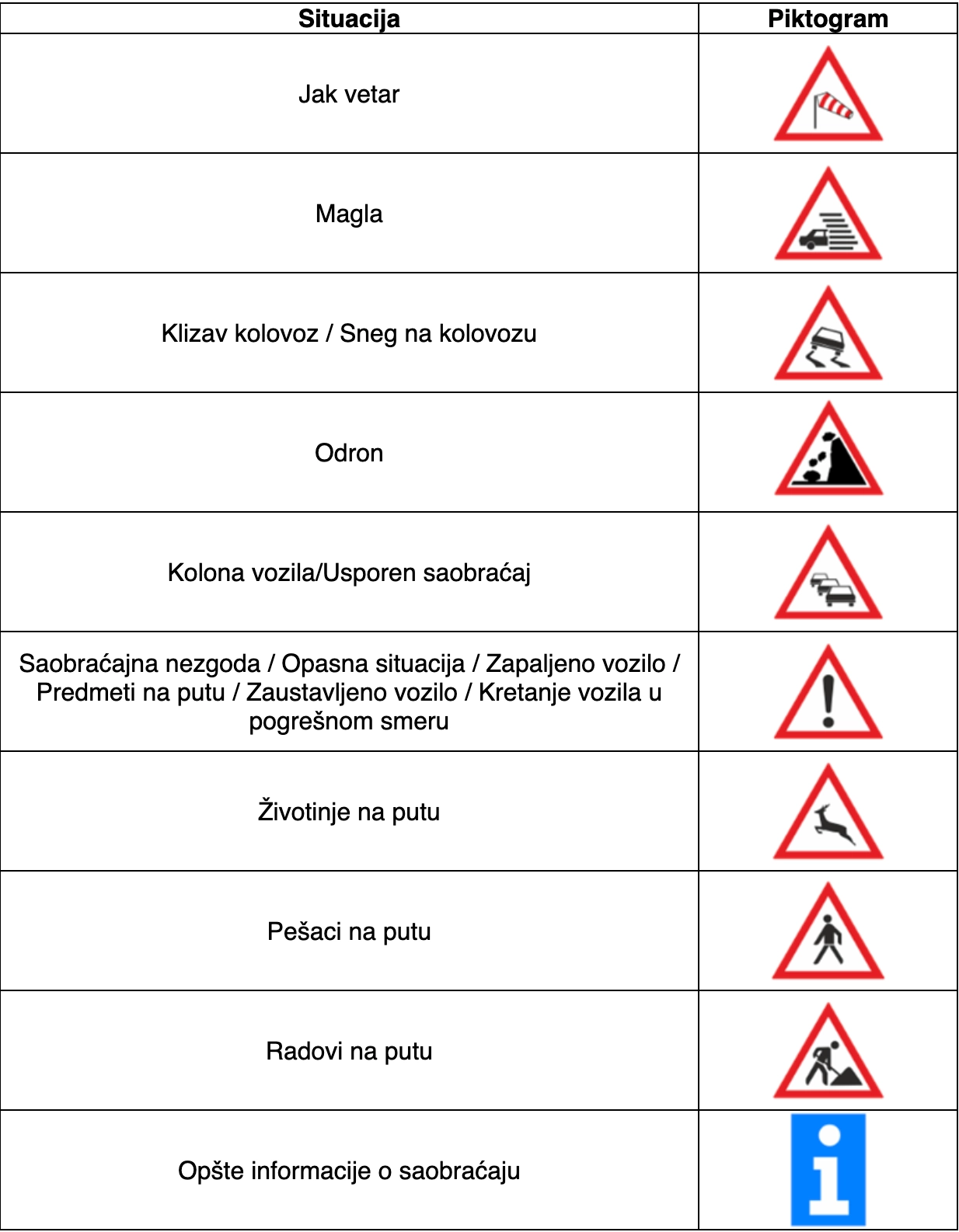
Events are visually supported with pictograms aligned with traffic signs familiar to drivers.
Notices
Notices are informational messages. They either provide general information (e.g., driving through an interchange area) or indicate that the driver will later enter the zone of an event. All notices use the same visual symbol — the information pictogram.
Please note that the situation vehicle traveling in the opposite direction is broadcast along the entire highway route!
In-vehicle screen components
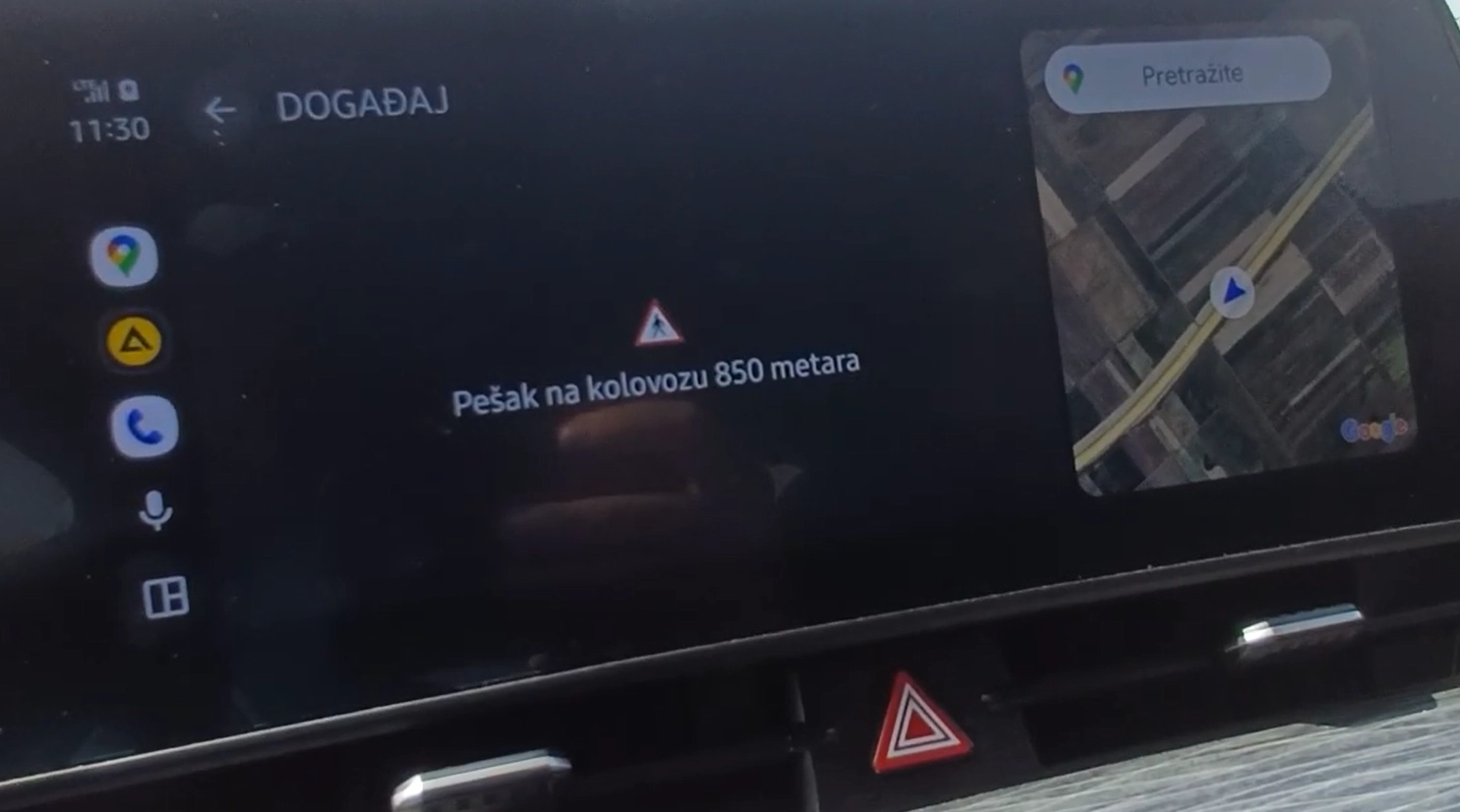
The app also includes an in-vehicle component (Android Auto and CarPlay). This component displays event and notice information on the vehicle’s screen connected to the mobile phone. The app does not need to be open on the phone for it to run on the car display.
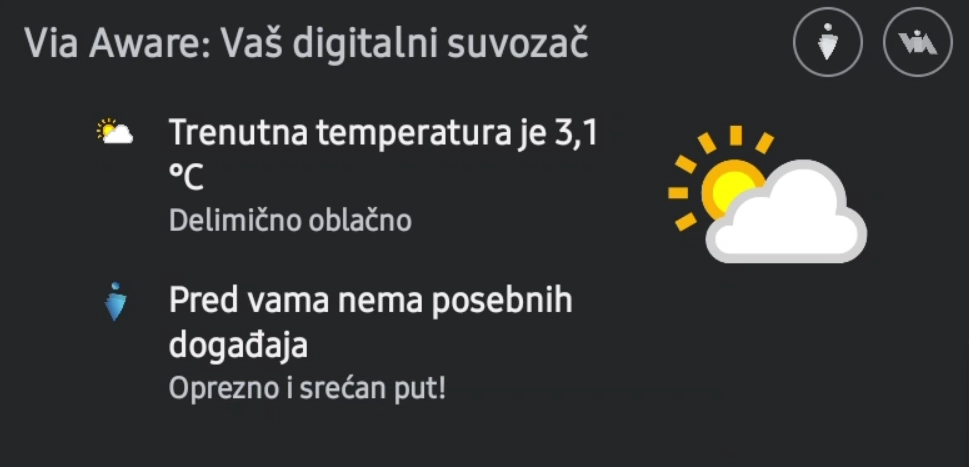
In-vehicle apps are subject to strict limitations to prevent driver distraction while driving. The Via Aware Android Auto component shows current weather data when the driver is outside a situation zone, and shows the same visual elements (text, type, pictogram) as the mobile component when the driver is inside a situation zone. The Via Aware CarPlay component displays the same visual elements (text, type, pictogram) in a table format when the driver is inside a situation zone.
The app has been extensively tested. Our suggestion is to drive carefully and reduce speed whenever you receive a warning about entering a situation zone — regardless of the situation type.
Have a safe trip!
Android
Download the app from Google Play. Launch the app and accept three permissions:
1. Showing notifications. This permission allows the app to display notifications (entering a situation zone).
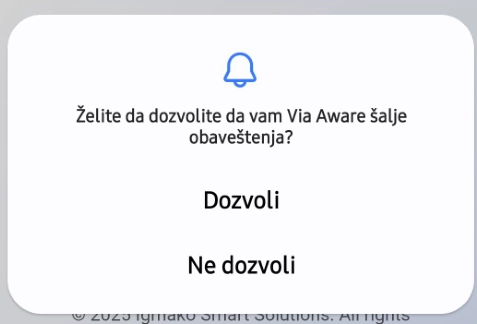
2. Access to the device location. This permission allows the app to read GPS sensor data from your device.
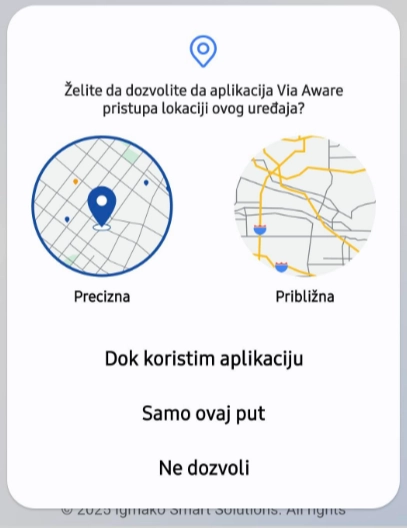
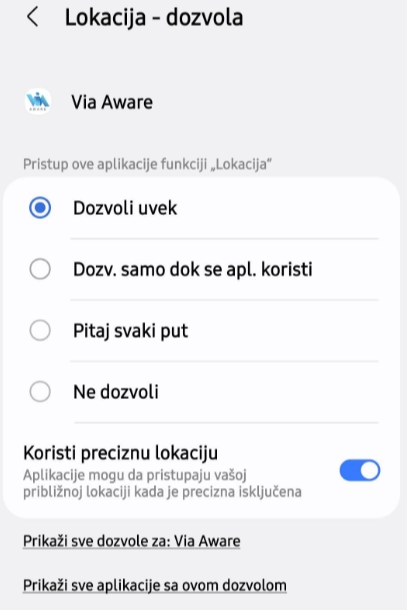
3. Running the app as a background service. This permission allows the app to remain active when it’s not visible, which can increase battery usage. This behavior is not enabled by default and can be controlled within the app itself.
IMPORTANT! The app requires an active Internet connection and will not work when Internet access is unavailable.
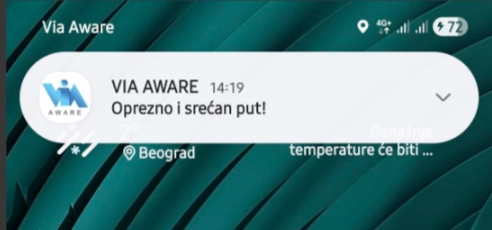
After accepting permissions, an initial notice appears:
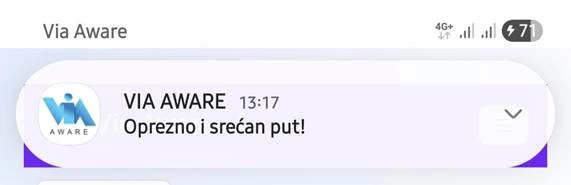
The Via Aware app’s initial screen consists of three parts:
Home, which provides basic information about the app, Guide, which explains what the app shows and how, and Terms of Use:
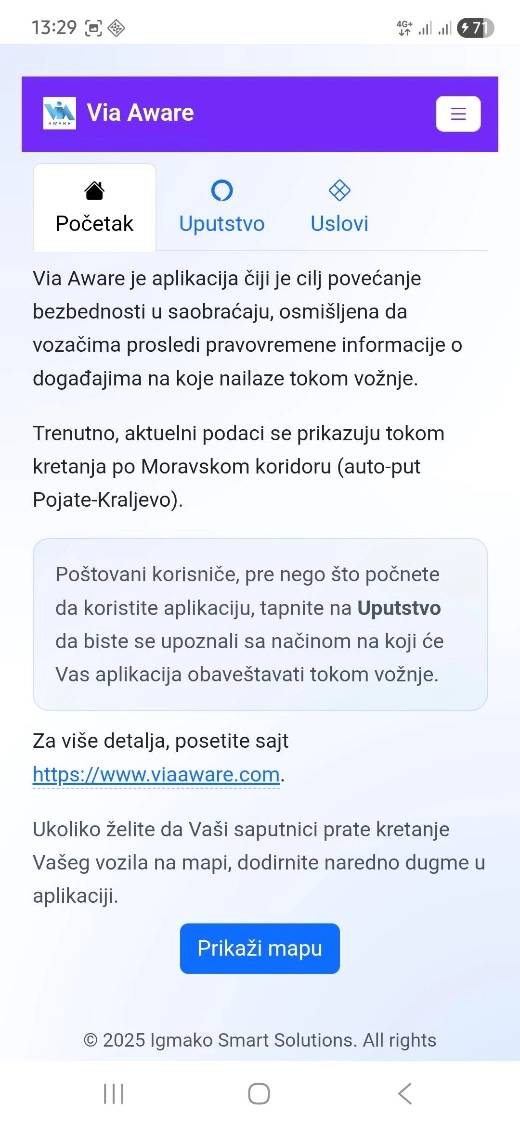
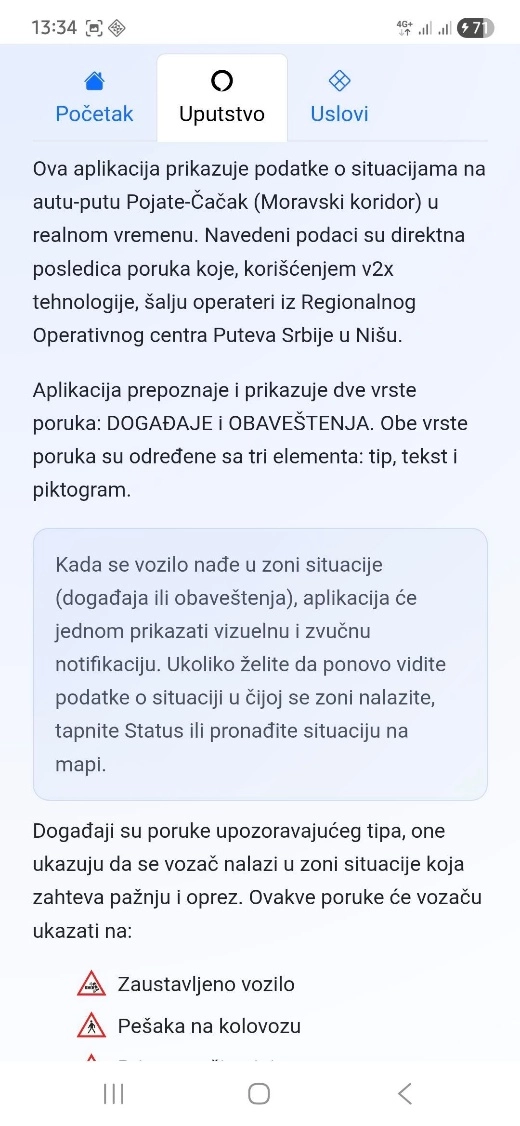
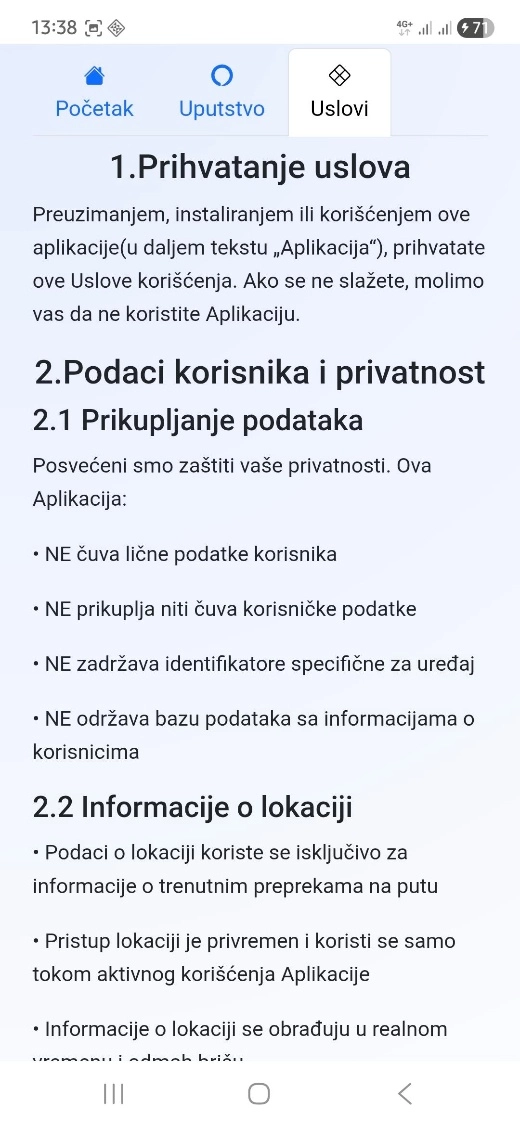
IMPORTANT! Via Aware helps drivers by indicating entry into an “exceptional traffic situation zone.” What does that mean? It is the part of the road where it is justified to inform the driver about an upcoming situation that requires special caution. This app will tell you what type of situation you are approaching. However, keep in mind: whatever the situation, you are expected to be especially cautious and adjust your driving speed to possible changes in traffic conditions.
For the app to start tracking the vehicle’s movement and showing traffic situations on the route, you need to start the app as a background service. Use the “Start map” button on the “Home” tab on the main page. When the user taps that button, the background location-tracking service starts and the map of the current location appears.
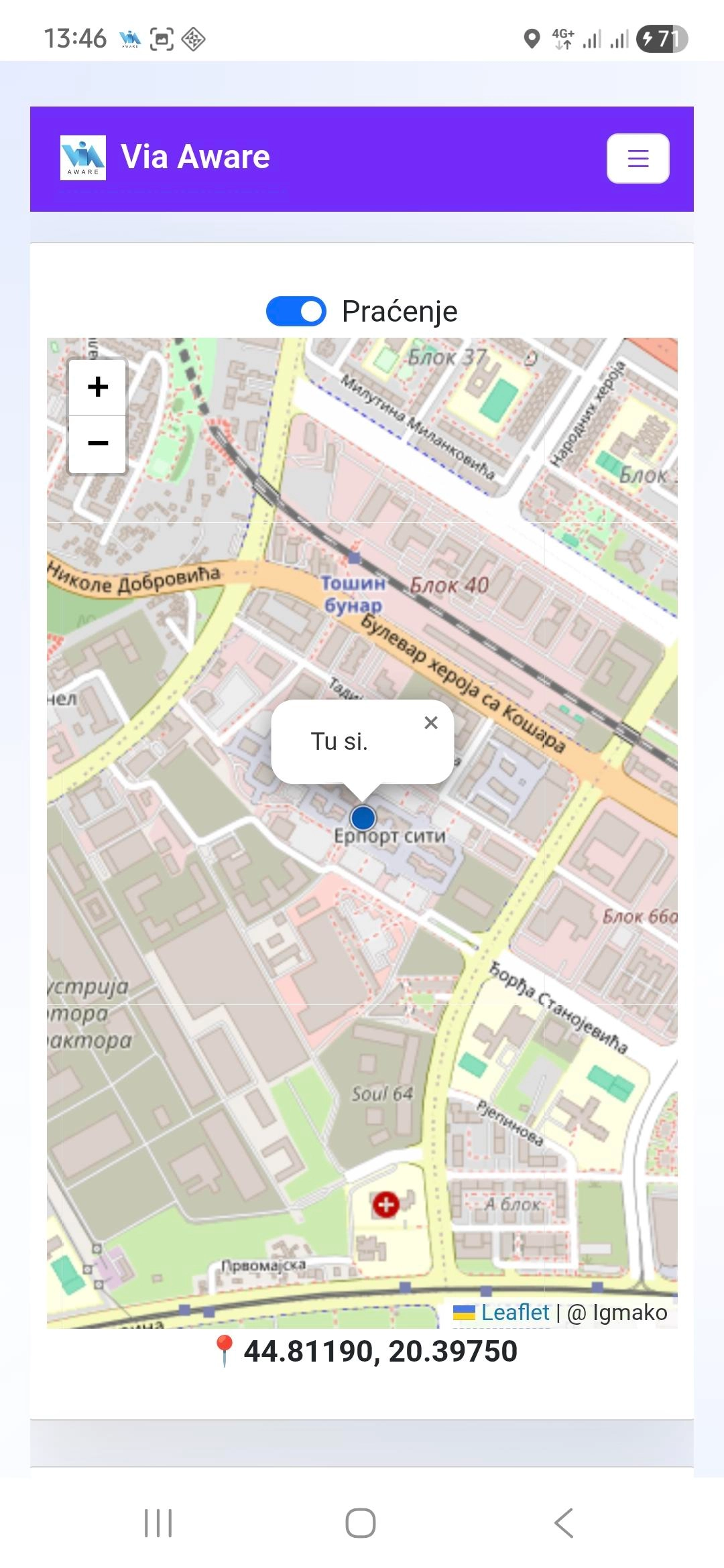
You can zoom in/out using the appropriate buttons and standard gestures (pinch). As long as “Tracking” is enabled, the map will center on the user’s current position whenever the device location changes.
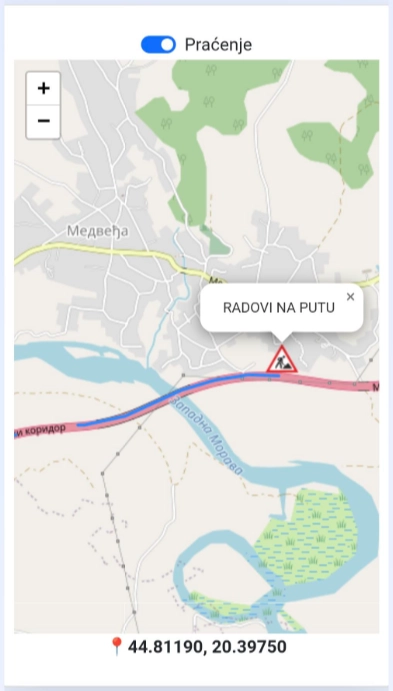
IMPORTANT! When the device enters a traffic situation zone, along with an audio alert (the standard notification sound for that device), a notification will appear with basic information (type and description of the traffic situation). Also, the map will show the pictogram, description, and the path of the traffic situation. The audio and visual alert will not appear again, and the shown traffic situation will remain on the map.
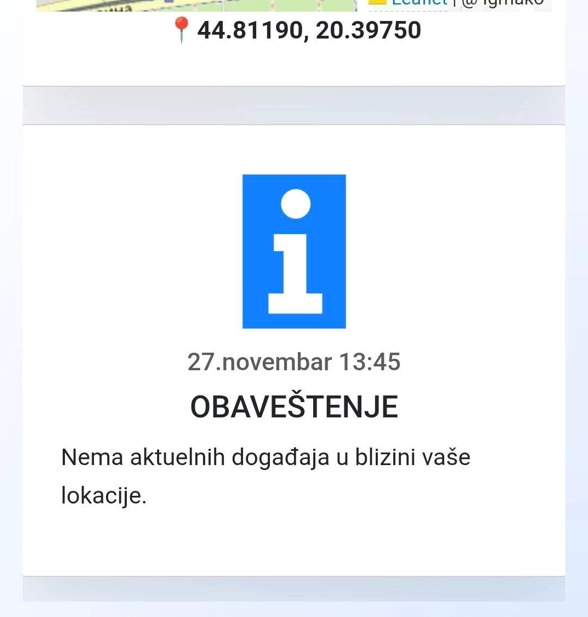
A passenger can view situation details in the detailed view below the map. Here is what the detailed view looks like outside a situation zone:
Here is what an active traffic situation (roadworks) looks like on the map and in the detailed view:
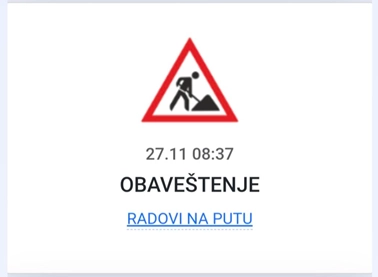
IMPORTANT! The link within the detailed view will open the traffic situation location in the device’s default maps app.
The app currently displays the following traffic situations:
IMPORTANT! In map view, the app runs as a background service. This means notifications will appear even if you move the app off the screen.
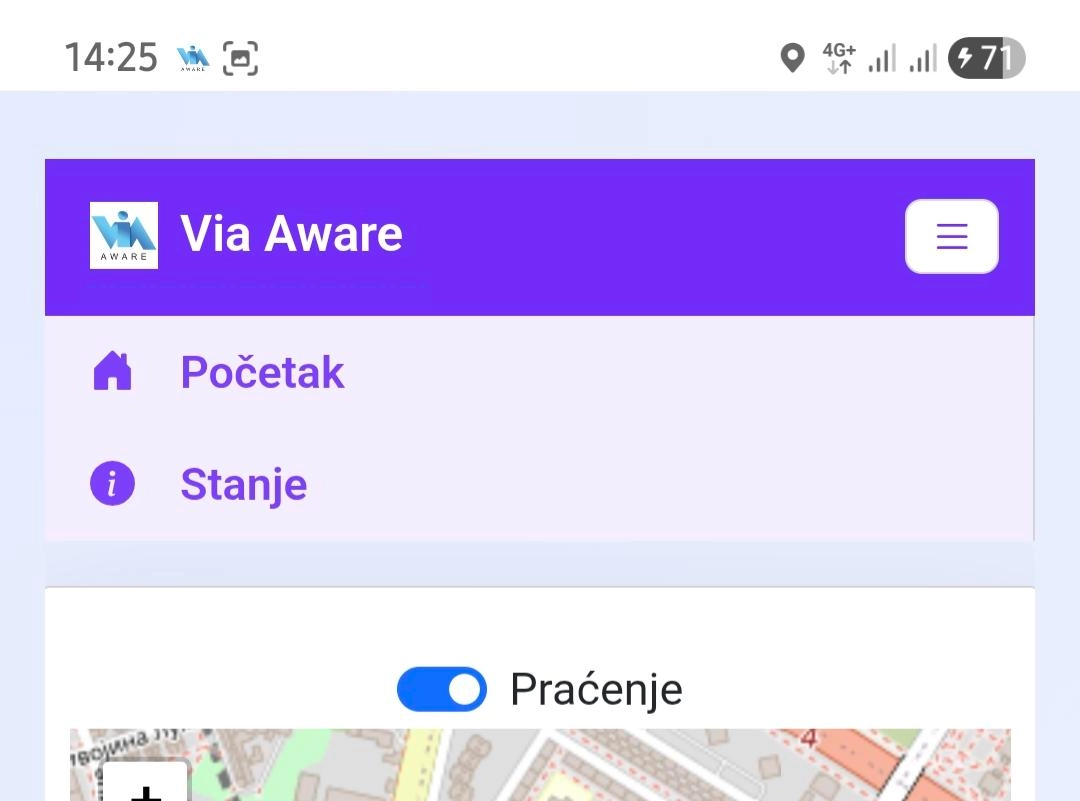
To stop this behavior, in map view tap the “hamburger menu” in the top-right corner and then tap “Home”.
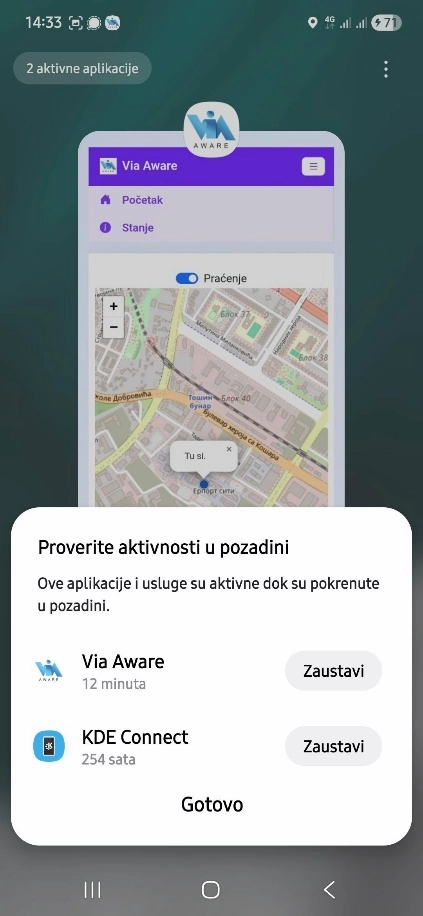
It’s also useful to check whether the app is running as a background service by reviewing active apps. Tap the appropriate button (often the three-lines button at the bottom of the screen) or use the corresponding gesture to open the recent apps view. In the top-left corner tap “Active apps” to see which apps are currently running in the background:
The app also offers some advanced options that you can see when you tap the “@ 2025 Igmako Smart Solutions” text at the bottom of the screen.
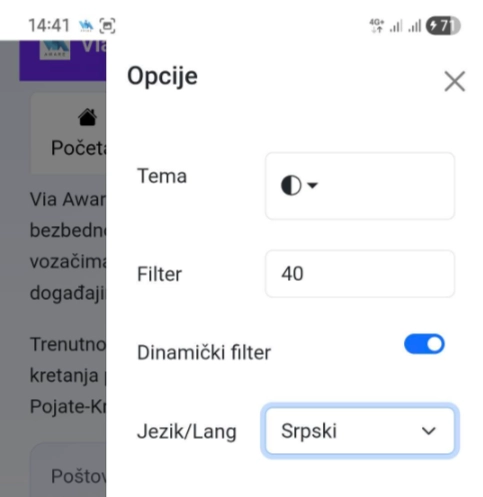
Here you can change the theme (dark/light) and language (Serbian/English). Other options should not be changed. After making changes, tap the “Close” button.
IMPORTANT! On first launch, the app selects the language by checking the user’s location — Serbian is selected only for users in Serbia, while English is the default for all other users.
Android Auto
The Via Aware Android Auto (AA) app is a component of the Android app that complies with strict Android Auto ecosystem requirements. It is downloaded to the mobile device and becomes available in the vehicle’s app menu.
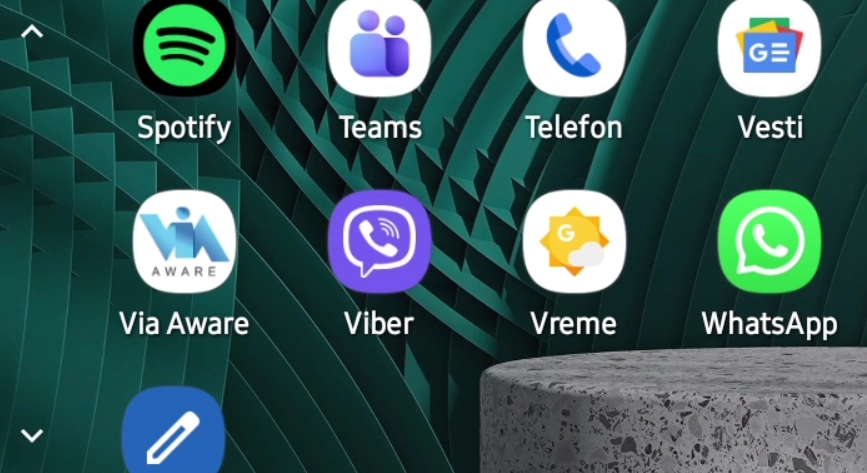
When you start the app with approved permissions, you get the following view. The app displays current weather data for the user’s location and refreshes it every 15 minutes.
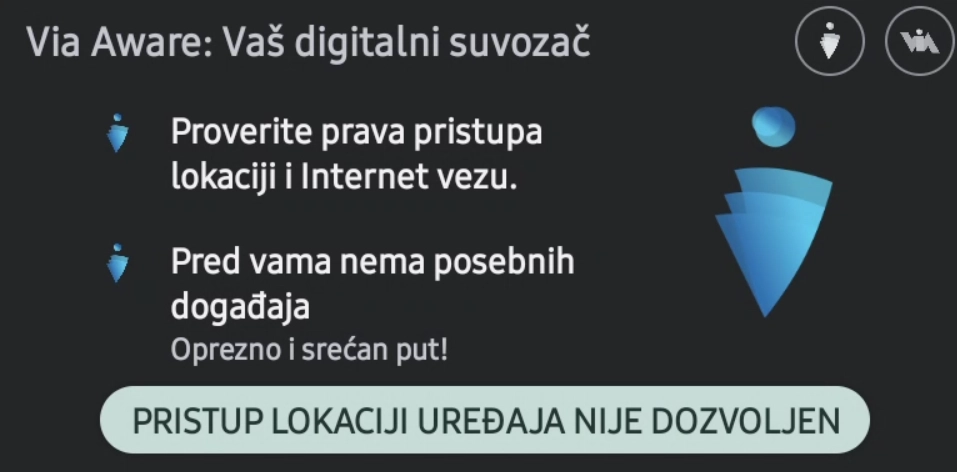
IMPORTANT! Before launching Via Aware in the car, you must first launch it on the mobile device (tablet or phone) to approve the required permissions described earlier in this document. Here is what the app screen looks like if permissions are not approved:
When the vehicle enters a traffic situation zone, an audio notification and a visual alert appear on the vehicle screen. If it is an event, along with the text and pictogram, the distance to the location is counted down: